# render-upload-your-own-environment-images
> Effortlessly upload custom scenes in Coohom rendering environment. Enhance your design visuals by adding personalized backgrounds. Start designing now!
- **URL**: https://www.coohom.com/helpcenter/render-upload-your-own-environment-images
- **Locale**: en_US
- **Updated**: 2026-06-11
## Content
In the render tool, you can upload your own environment images for rendering. Uploading environment images according to the format requirements can achieve better results. After a successful upload, you can also adjust the environment parameters. This article will explain in detail how to upload your own environment images.
⭐Before reading the article, it is recommended to watch the video tutorial first for easy getting started\~
\[Video URL\](https://www.youtube.com/watch?v=6qgaLB-TstA)
For Users
=========
All users
Requirements for Uploading Environment Images
=============================================
Before uploading environment images, please read the format requirements for uploading environment images, which can help you upload images more smoothly.
1. Supported file formats: PNG and JPG.
2. Each image must not exceed 20MB.
3. We recommend uploading images with a resolution between 8000x4000px and 16000x8000px.
4. Supports uploading up to 10 background images.
5. Only realistic lighting templates support manually uploading environment images.
6. Additional custom background could be downloaded from here **[Click to view](https://polyhaven.com/hdris/outdoor?kjl_source=hc)** and make sure those images meet the upload requirements as mentioned above.
Entrance
========
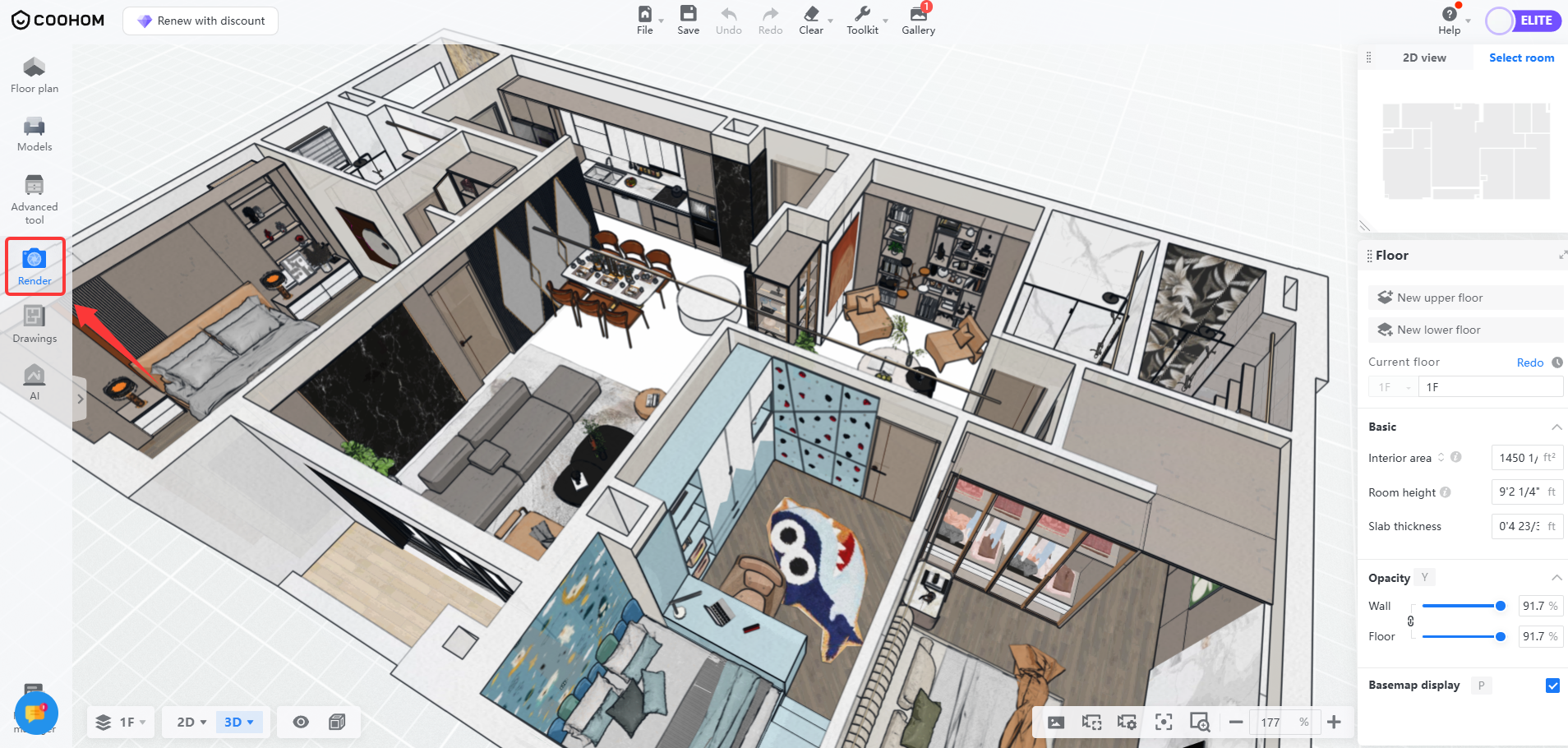
1. Enter Interior Design, select **Render** from the left toolbar.
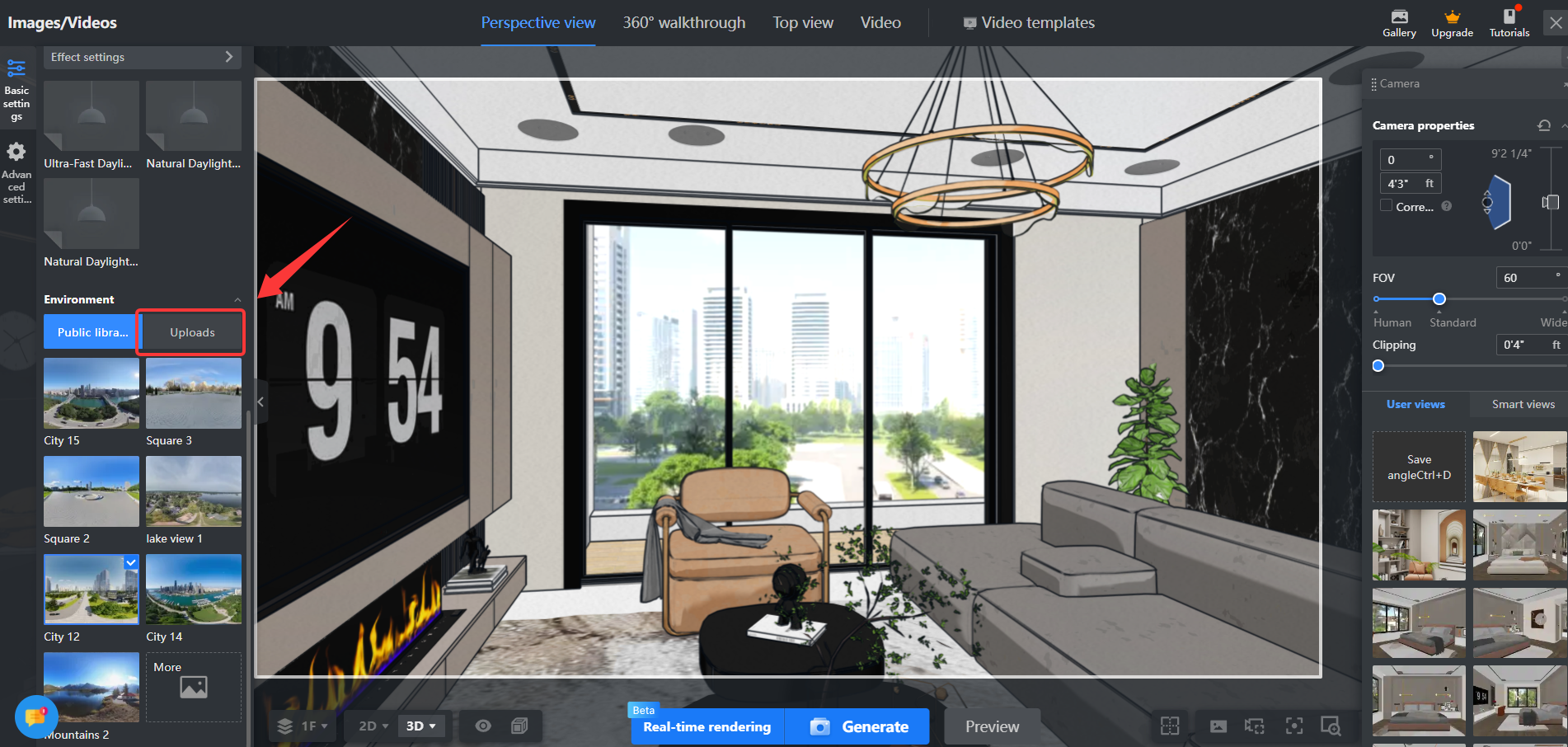
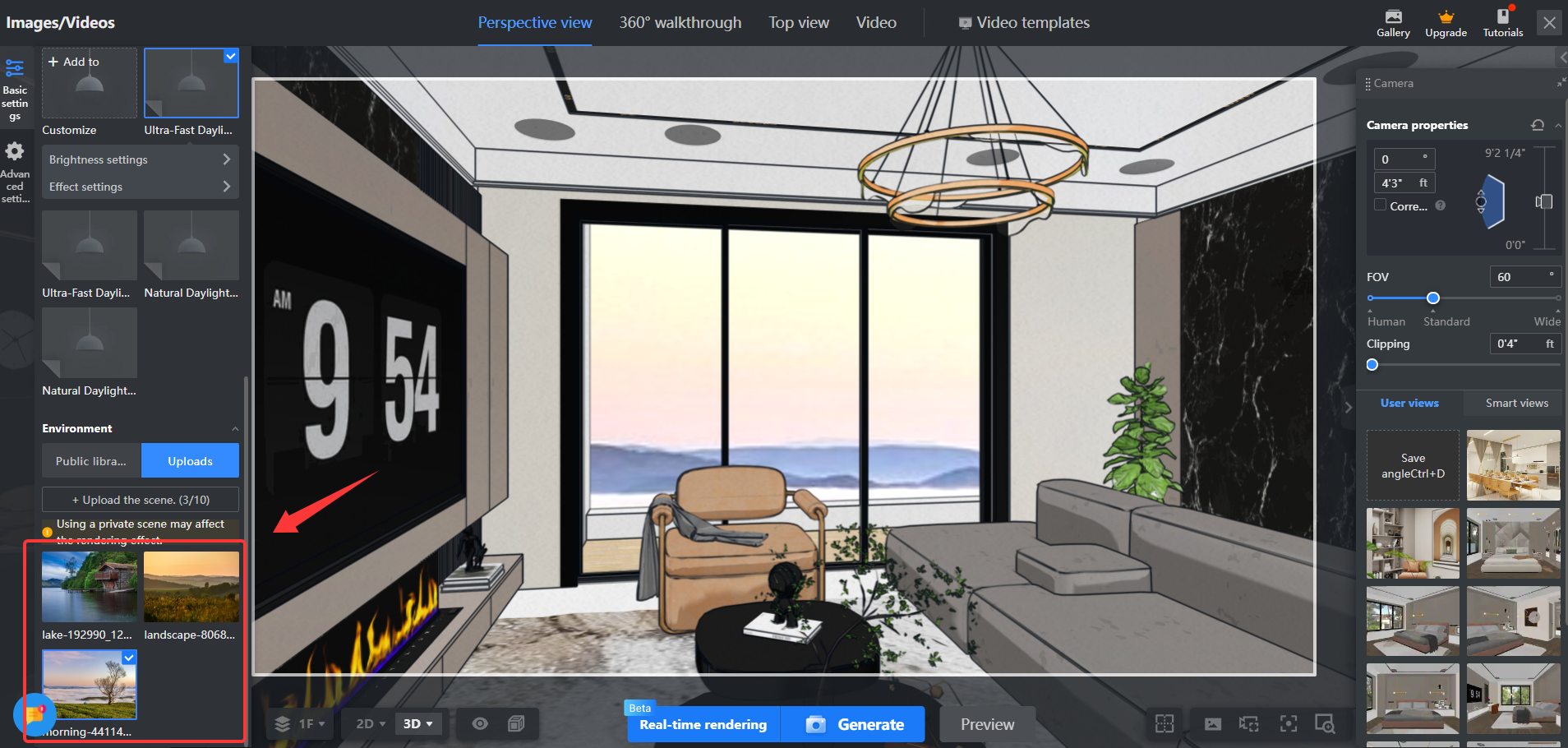
2. After entering the render page, scroll down to the bottom of the **Basic Settings** section on the left to see the **Environment** settings area, and click on the **Uploads** section.
Upload Environment Images
=========================
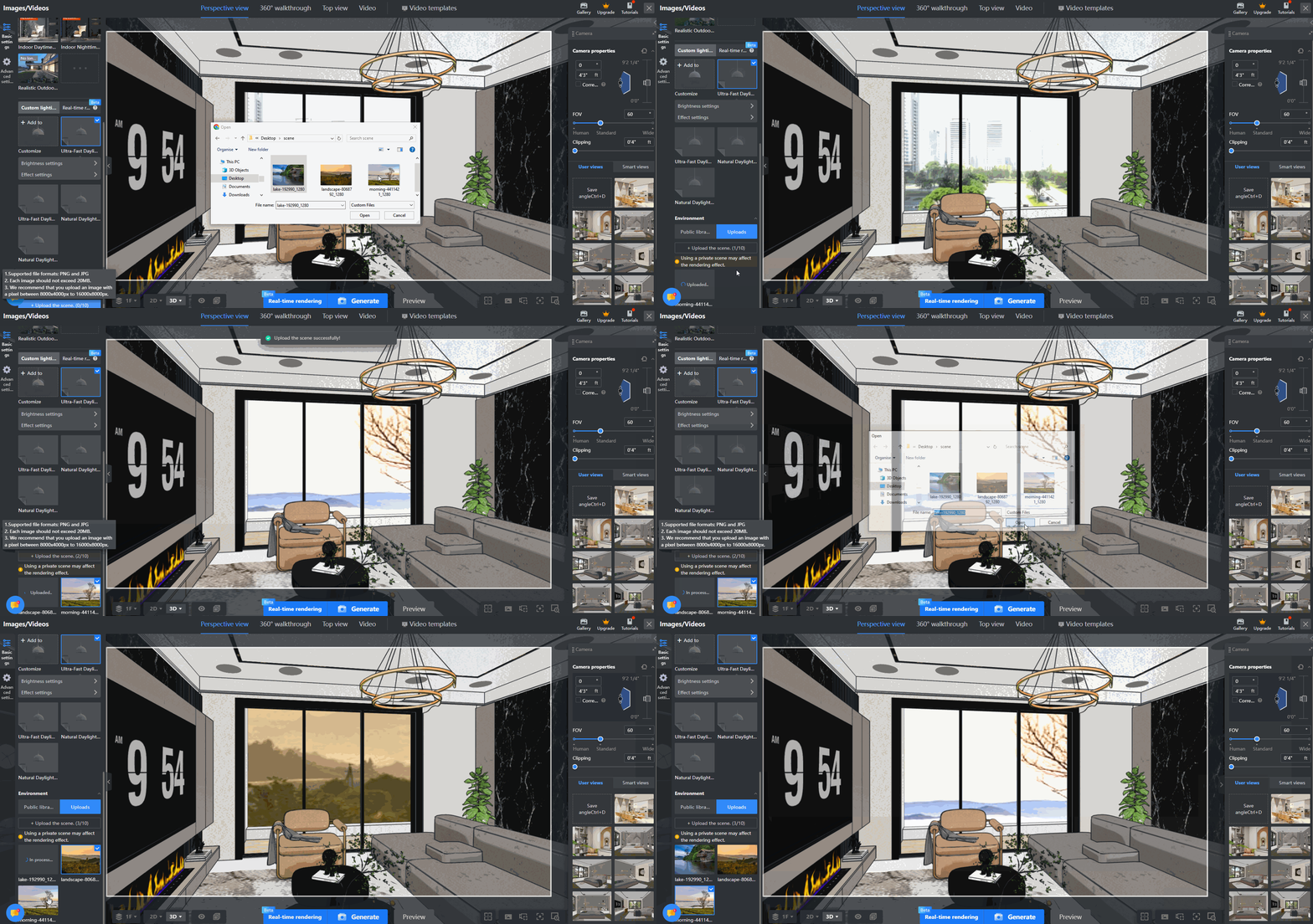
1. Click **Upload the scene**, and select the environment images you need to upload (up to ten).
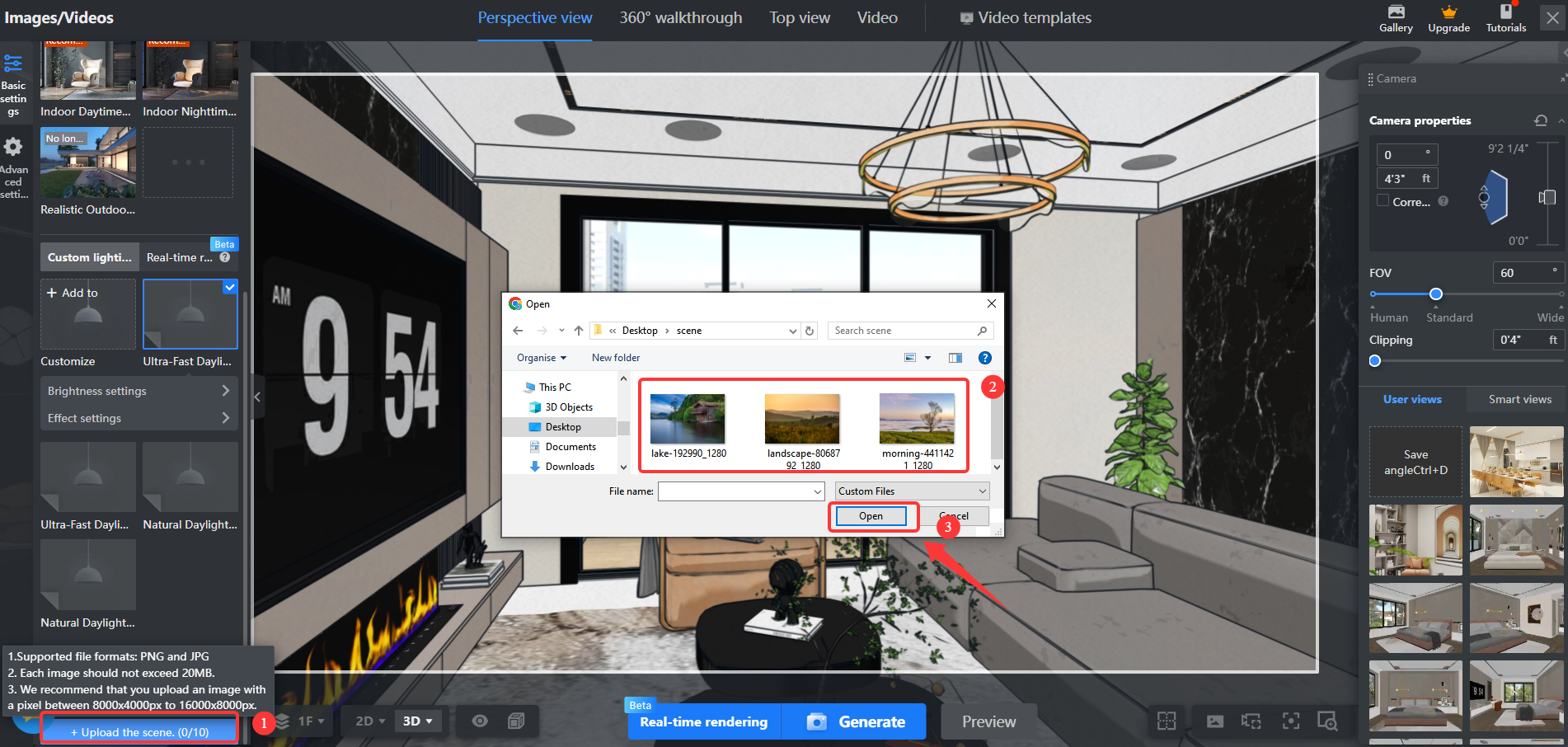
2. After uploading successfully, the custom environment images will appear in the environment section.
* Here is a demonstration:
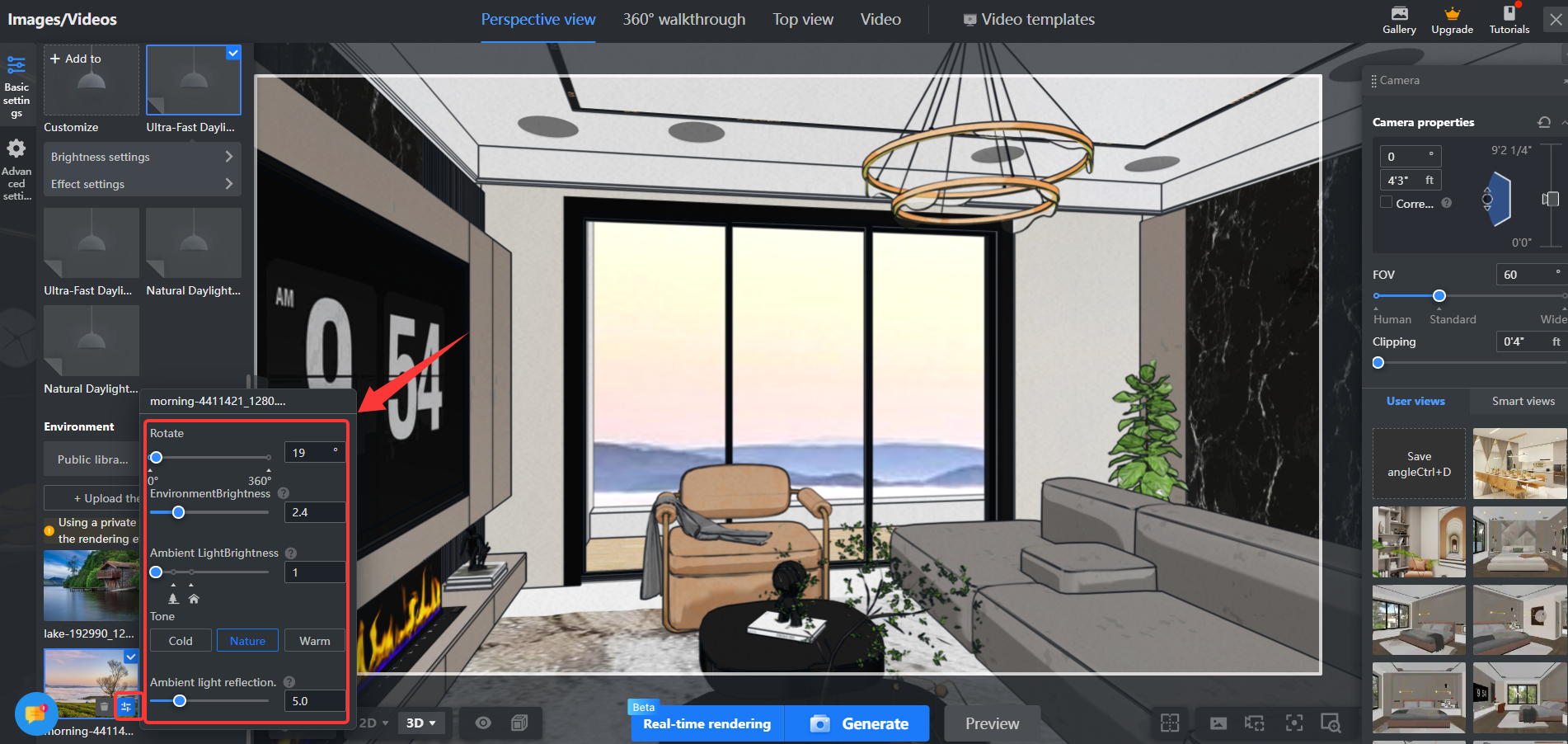
Set Parameters for Uploaded Environment
=======================================
Move the mouse to the question mark icon next to the parameter bar to see the effects of adjusting that parameter.
* For detailed operations related to setting Environment parameters, see the tutorial document: [Click to view](https://www.coohom.com/en_US/helpcenter/render-set-environment-parameters?kjl_source=hc).