# coohom-elite-plan-team-function-overview
> Learn how Coohom Elite streamlines team collaboration with upgraded subscriptions, member management, shared libraries, and efficient resources. Start designing now!
- **URL**: https://www.coohom.com/helpcenter/coohom-elite-plan-team-function-overview
- **Locale**: en_US
- **Updated**: 2026-06-11
## Content
In the fields of architecture, interior design, and engineering, multi-location collaboration has become the norm. Designers face the dual challenge of shorter delivery cycles and increased precision requirements. Traditional tools often struggle to balance "professional depth in personal creation" and "efficient and agile team collaboration".
Coohom Elite is tailored for professional designers and small to medium teams: On one hand, it upgrades high-quality rendering capabilities, achieving more stable and efficient output; on the other hand, it provides automated construction drawing exports, supporting one-click generation, finely customized standards, and one-click delivery downloads. Additionally, Elite introduces a cloud-based team collaboration space, creating a closed loop for resource sharing, version management, and feedback communication. By combining top-notch design performance with a seamless collaboration environment, Elite helps teams shorten delivery cycles while achieving higher levels of design expression and management efficiency.
⭐Before reading the article, it's recommended to watch the video tutorial first to get started quickly\~
\[Video URL\](https://www.youtube.com/watch?v=QsS3RqIKQF0)
For Users
=========
All Elite users, gradually opening up\~
Key Function Introduction
=========================
Subscription Upgrade
--------------------
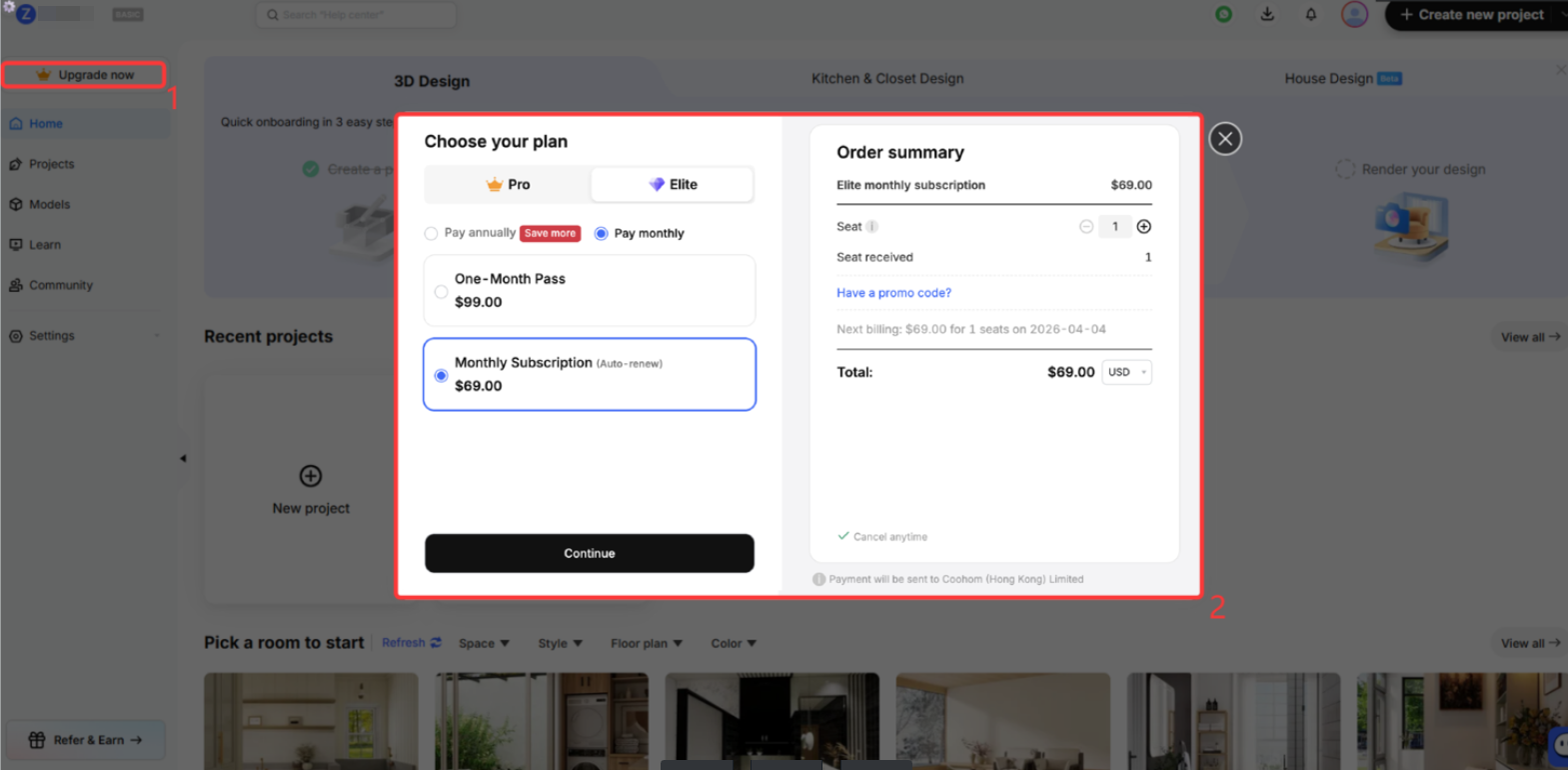
First, you need to upgrade your subscription to **Elite**, which will allow you to use powerful team collaboration features to share resources and improve work efficiency.
* Detailed operation for upgrading your subscription can be found in the online documentation: [Click to view](https://www.coohom.com/en_US/helpcenter/how-to-upgrade-your-subscription?kjl_source=hc).
Member Management
-----------------
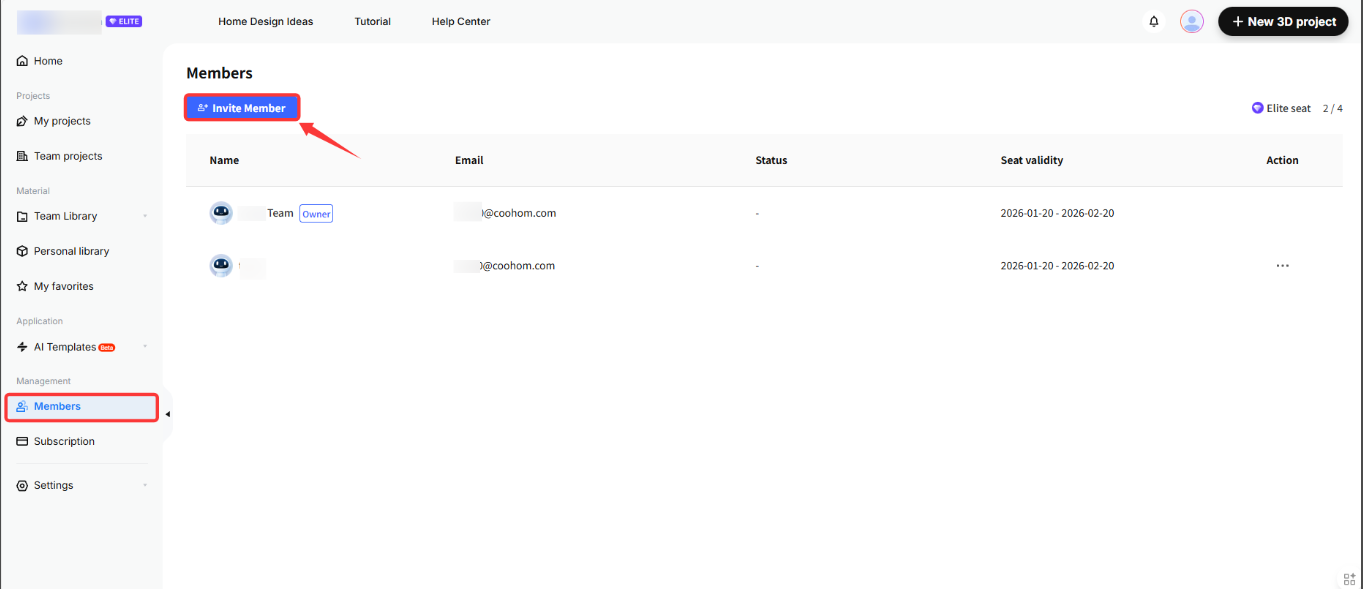
After upgrading, you will receive a team space where you can invite members to join the team and set appropriate permissions based on actual work requirements. Users granted administrator rights can also invite members to join the team and assign permissions, achieving efficient management.
* Detailed operation of **Member Management** and **Permission Assignment** can be found in the online documentation: [Click to view](https://www.coohom.com/en_US/helpcenter/team-space-member-management-and-seat-purchase-guide?kjl_source=hc).
* Detailed explanation of team member roles can be found in the online documentation: [Click to view.](https://www.coohom.com/en_US/helpcenter/team-space-team-member-role-description?kjl_source=hc)
Create Team Projects
--------------------
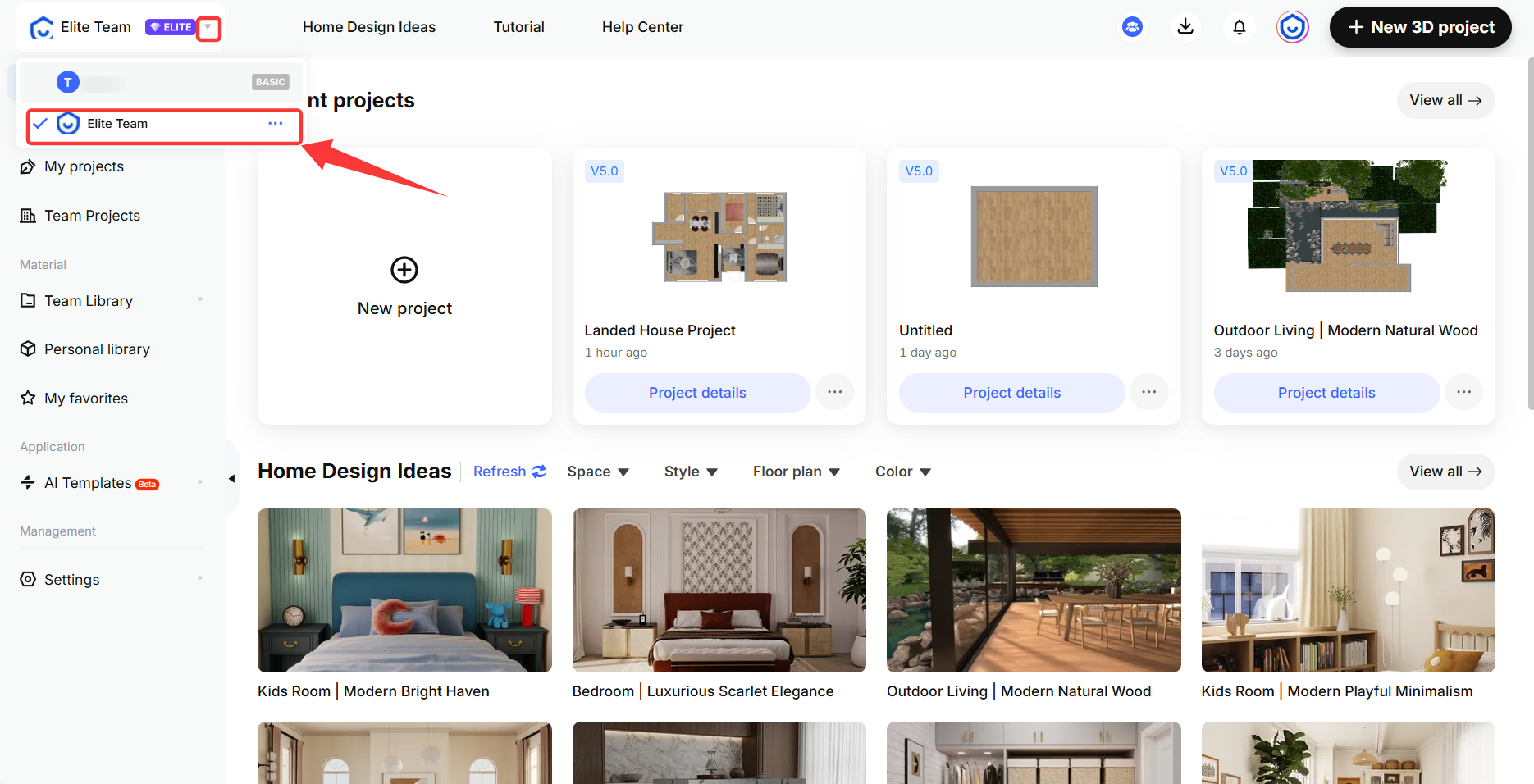
Upon receiving an invitation to join a team, registered Coohom users will gain access to a new team space and can freely switch between personal and team spaces. New users will need to register first, and after logging in, they can directly join the team's space. Projects created within the team space can be viewed and edited by all team members, enhancing collaboration efficiency.
* Detailed operation for creating team projects can be found in the online documentation: [Click to view](https://www.coohom.com/en_US/helpcenter/team-space-create-a-team-project?kjl_source=hc).
Upload Model Assets to Team Library
-----------------------------------
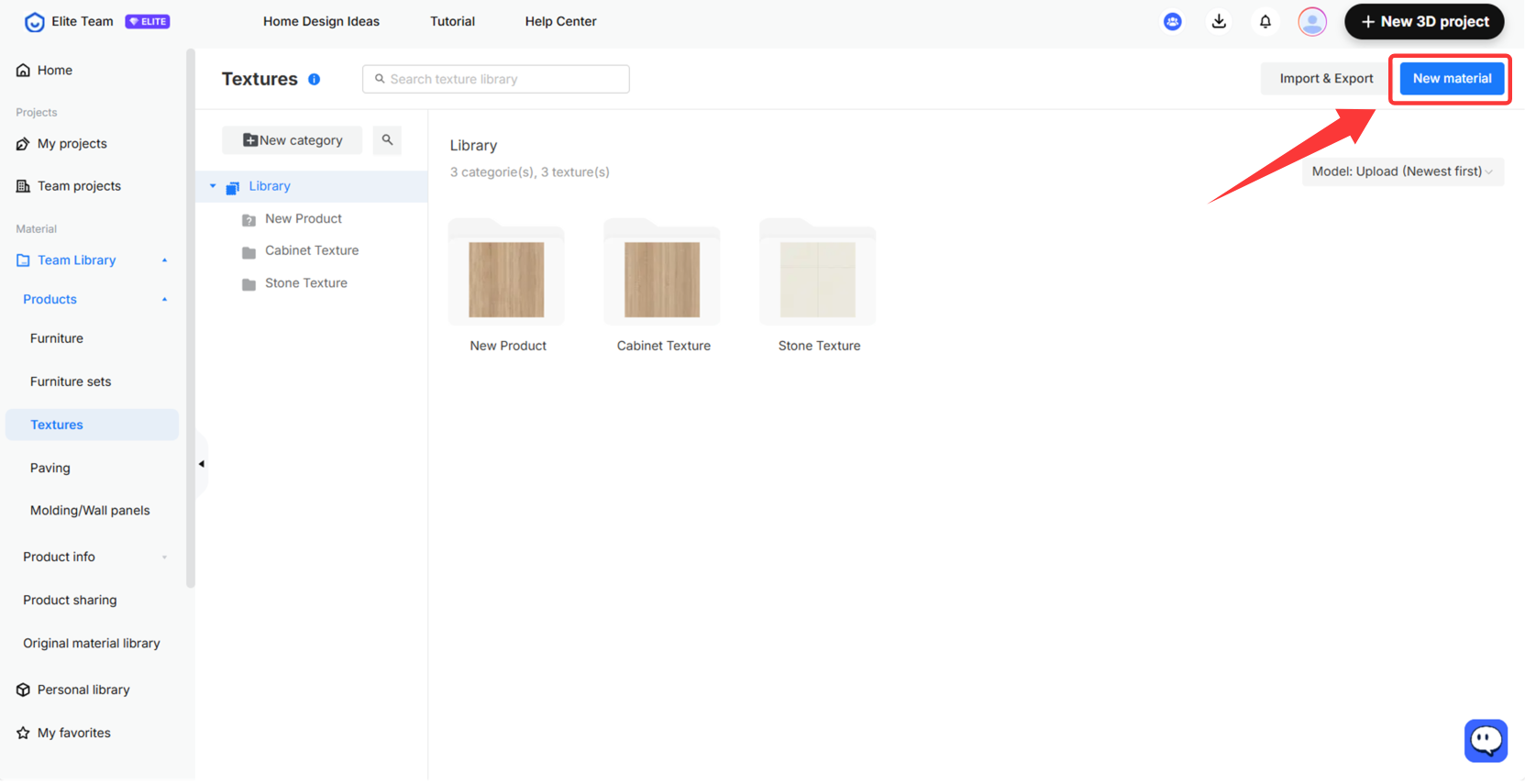
Team owners/administrators can upload team model assets to the team library. Once uploaded successfully, all team members can utilize them via the tool.
* Detailed operation for uploading model assets can be found in the online documentation: [Click to view](https://www.coohom.com/en_US/helpcenter/team-space-upload-model-materials-in-the-team-library?kjl_source=hc).
Copy Projects/Models to Team Space
----------------------------------
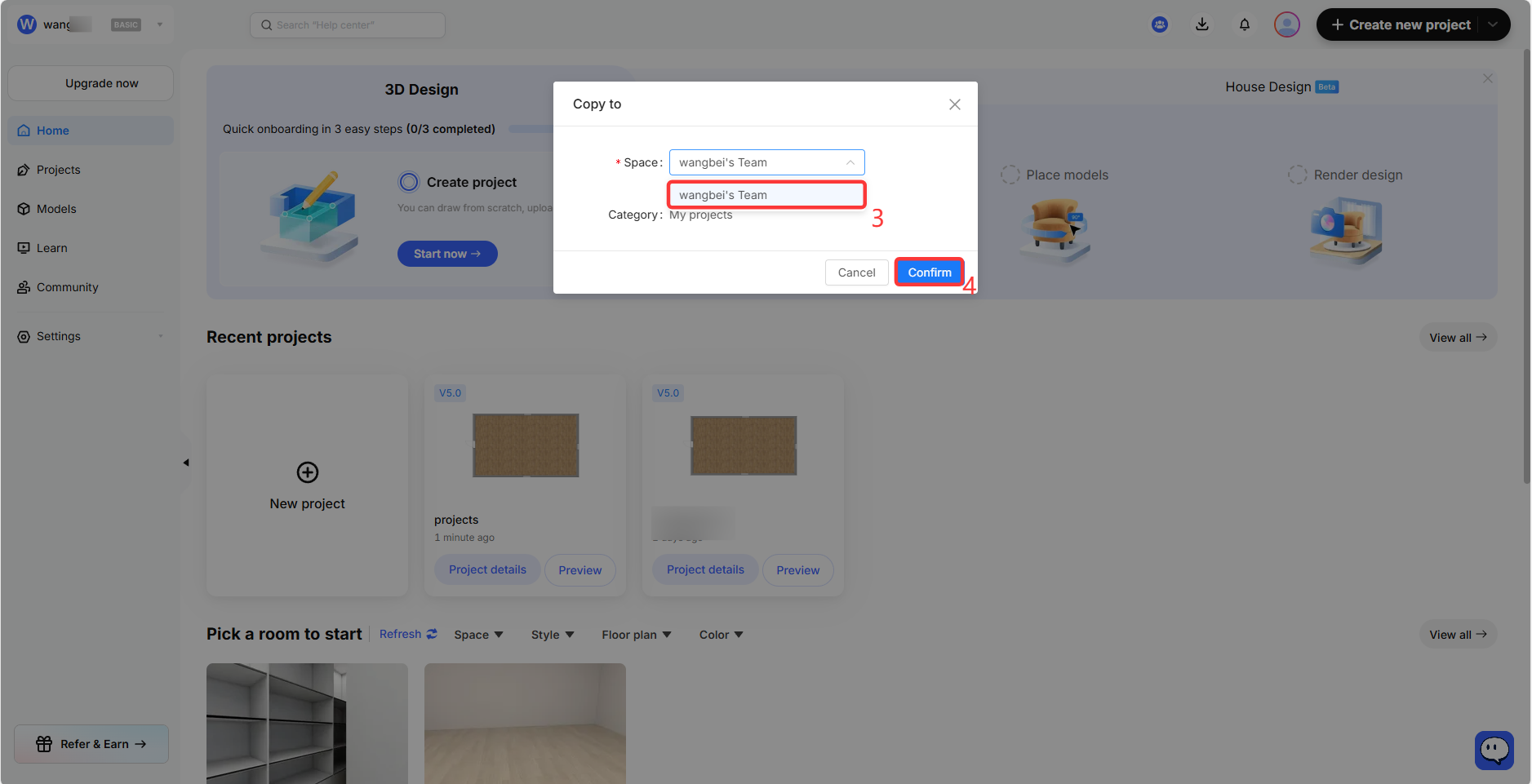
Team members can copy their personal space projects and model assets to the team space. Once a project is copied to the team space, all team members can view and edit it. However, model assets copied to the team space are only visible and usable by the individual who copied them, and other members cannot view them.
* Copy Projects/Models for detailed operations can be found in the online documentation::[Click to view](https://www.coohom.com/helpcenter/elite-team-space-copy-projects-models-to-team-space?kjl_source=hc).
Generate Invoices
-----------------
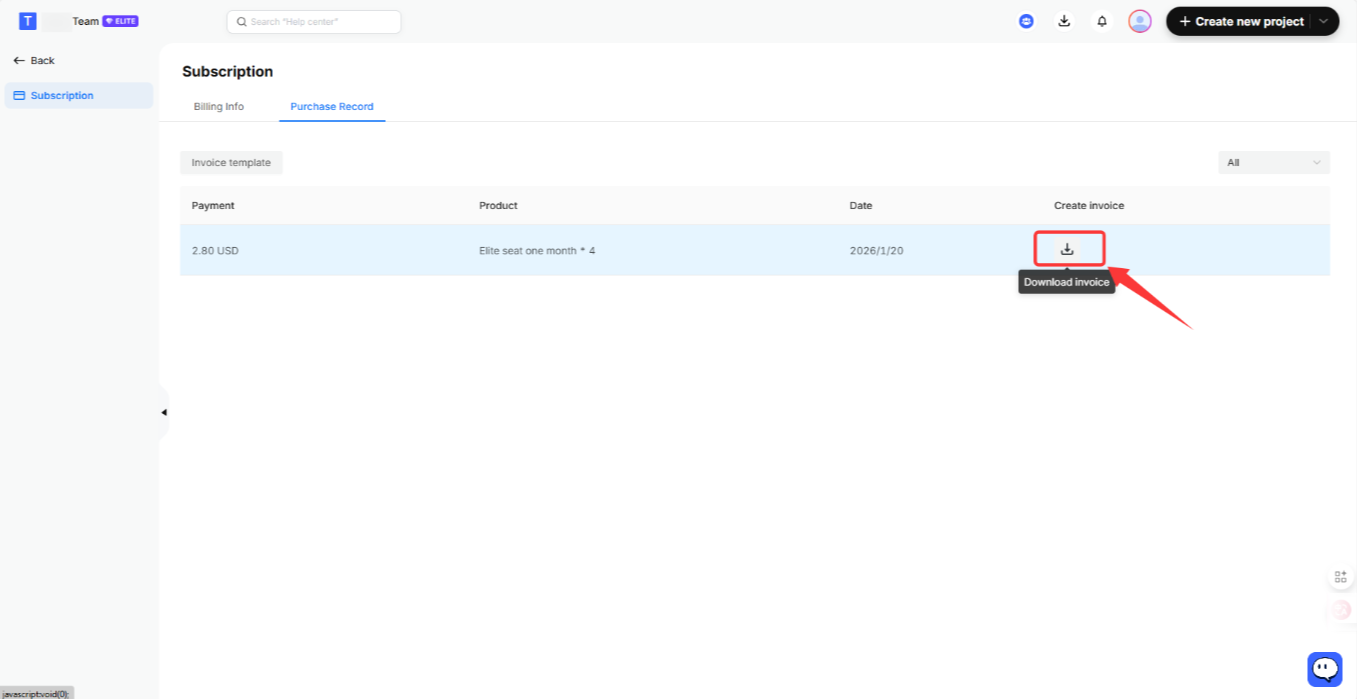
Downloading an invoice is a self-service operation. Coohom does not provide manual invoices for individual users. Payment invoices can be generated from the Coohom account.
* Detailed operation for generating invoices can be found in the online documentation: [Click to view](https://www.coohom.com/en_US/helpcenter/team-space-generate-invoice-for-elite-account?kjl_source=hc).
Notes
=====
The FAQs of Coohom's New Elite Team can be found in the online documentation: [Click to view.](https://www.coohom.com/en_US/helpcenter/coohom-new-elite-team-faq-collection?preview=1&kjl_source=hc)